By admin on Dec 23, 2008 | In PC Crash | No Comments »
 If you are unable to load Windows, it is useful to know how you can still access your files and copy them to a safe location. For the purposes of this exercise, we’ll assume that Safe Mode does not work and the only way to access your documents is through the Recovery Console. You can also practise this in the Command Prompt window.
To open the Recovery Console, please read my previous post. To open the Command Prompt, go to Start, Run and type in cmd, and click OK. Another way of accessing cmd is through Start, All Programs, Accessories, Command Prompt.
Once you have opened the cmd window, you’ll be in the c:\documents and settings\your username directory, or in c:\Windows if you are using the Recovery Console. Type HELP to see the list of available commands.
To view the list of subfolders in the directory, type DIR. If you want to access one of the directories listed, type CD and the name of the subfolder. To return to the previous (upper) level, type CD..
Read the rest »
By admin on Dec 22, 2008 | In PC Crash, Windows XP | 1 Comment »
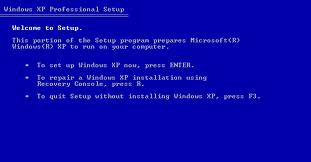 First of all, you’ll need the Windows XP CD. Next, you need to make sure that CD/DVD is the first boot device in BIOS. To load BIOS, press DEL at the startup screen (in some PCs a different button is used, for example one of the Function keys) and look for the boot device priority. If CD/DVD is not at the top of the list, select it and press the plus (+) key until it’s on top. Press F10 to save the settings and exit.
- Restart the PC and put the XP CD in the CD/DVD drive. Follow the instructions on screen (Press any key to boot from CD…)
- At the first menu, you’ll be shown a couple of options. Press R to load the Recovery Console.
- In the next window, you’ll be asked to log on to your Windows installation. Most PCs will have only one, so you have to press 1 and Enter.
- You are now in the C:\Windows directory. To see the list of available commands, type in HELP.
In my previous blog entry, I used the CHKDSK command to fix logical file system errors. From this location, you can also use FIXMBR to write a new master boot record to the hard drive or view/access subfolders with the DIR and CD commands.
Read the rest »
By admin on Dec 21, 2008 | In PC Crash | No Comments »
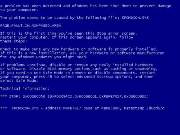 Recently I had a serious problem with my laptop. When I turned it on and Windows XP started to load, it suddenly displayed the Blue Screen of Death (BSD) and restarted itself. I tried to boot into Safe Mode (press and hold F8 until you see the menu) but it stopped with a message: ‘press Escape to stop loading d346bus.sys’. When I pressed Escape, the laptop rebooted again. I tried other options on the menu (last known good configuration, safe mode with cmd and networking) with the same result. The BSD appeared only for a fraction of a second and after several attempts to read the message, I saw that Master_Boot_Volume was listed.
No new hardware or software was installed recently and I didn’t suspect a virus infection. d346bus.sys file is part of Daemon tools and I would have uninstalled the program if I had a way to load Windows XP.
I attempted to repair the Windows XP installation by using the XP CD, however no previous Windows installation was found, so there was nothing to repair. I was already thinking about formatting the hard drive as I thought I had lost everything…
Read the rest »
By admin on Dec 20, 2008 | In Laptops, Software | No Comments »
 I discussed Adeona laptop tracking software in my previous blog entry because I tested it, but it’s useful to know what other programs exist that provide the same or even better service. Most of the following programs are not free, but I suggest you check them out. It could be a small price to pay compared to a potential loss of laptop and data.
Also check out LocateLaptop.com, a service that offers laptop tracking and data security.
By admin on Dec 18, 2008 | In Windows XP | No Comments »
 I’ll start my blog by discussing an annoying error which I experienced not too long ago.
When I opened My Computer and tried to open the C:\ drive by double clicking, instead of getting the list of all subfolders, a new window appeared asking me to select a program that can open the application. I have seen this error in several computers and always in Windows XP. Sometimes you are still able to view subfolders if you right-click on C:\drive and select explore, but in some cases not even this will work.
There are a couple of possible fixes for this problem. First, while you’re still in Windows Explorer, go to Tools, Folders, View and click on Reset All Folders. This should reset the settings that were in effect when Windows XP was first installed.
Another option is to open the Command Prompt (Start, Run, type cmd in the text field, or: Start, All Programs, Accessories, Command Prompt) and type:
Read the rest »
