By admin on Dec 29, 2008 | In PC Crash, Windows XP | No Comments »
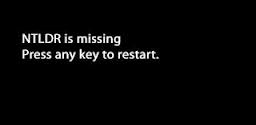 After the POST (power on self test) screen, Windows does not load and the following message is displayed: “ntldr is missing”. This means that one or two essential system files are either corrupt or have been deleted: ntldr and/or ntdetect.com. Without these files, Windows cannot operate. This message is usually associated with Windows XP.
To fix this, you have to restore ntldr and ntdetect from the Windows XP CD. Restart the PC and boot from the CD (if you are not sure how to do this, please read my previous post). Follow the instructions on screen until you see the first menu. Here, press R to start the Recovery Console. When you are asked to choose your Windows installation, press 1 (choose another number if you have other windows installations), type your administrator password if you have one, and/or press Enter.
You will see the C:\Windows directory. To copy the files from the CD to your hard drive, you need to type in the following two commands (and press Enter after each command):
- copy X:\i386\ntldr C:\
- copy X:\i386\ntdetect.com C:\
Read the rest »
By admin on Dec 28, 2008 | In Windows Vista | No Comments »
 When you shut down Windows, the following error message appears: Schtasks.exe – Application failed to initialize (0xC0000142). You can click OK or the message disappears by itself and the shutdown process continues.
Schtasks.exe is a command line version of the Task Scheduler in Windows Vista. It lets you specify a schedule for the automated execution of commands. Besides the specified date/time schedule, execution can be triggered by other programs as well. If you are an advanced user, you can open the Task Scheduler (Control Panel, System & Maintenance, Administrative Tools) to see all scheduled tasks and decide whether you need all of them. You can also open the System Configuration Utility (Start, Run, type msconfig and click OK) and see which programs are scheduled to run at startup (Startup tab).
This error was probably caused by the Java software. The message stopped appearing after I uninstalled Java from the computer. However, you still need Java for many applications, such as games, chat programs, 3d images and Internet. After you uninstall Java (Control Panel, Uninstall a program) and confirm it’s responsible for the error, reinstall it. Go to the Java Web site and download the latest version. In my case, the problem did not reappear.
Read the rest »
By admin on Dec 27, 2008 | In Windows Vista, Windows XP | No Comments »
 Let’s assume you have a PC or laptop with Windows Vista installed but you want to install Windows XP as well. Or you have XP and want to try Vista without losing XP.
Before you start the installation, you should make sure that your computer can handle two operating systems. Most importantly, you need a hard drive that can provide the space for Vista and XP. If your PC/laptop is less than two years old, then I wouldn’t worry about it. Otherwise, I suggest you use at least a 100GB hard drive (larger capacity is recommended), 1GB of RAM (for Vista), a minimum 1Ghz processor and a DVD ROM.
If you have only one hard drive, then you’ll have to split the hard drive in two partions, one for each operating system. If you can use two hard drives, then you won’t need the partitions.
Read the rest »
By admin on Dec 26, 2008 | In Laptops, Software | 1 Comment »
 When you turn on your laptop, you notice that the colors on the screen are inverted – black is white, white is black and instead of blue you see orange. This is sometimes referred as negative mode or negative display. In addition to these symptoms, the picture is very dark/dim and it can flicker at low brightness. When you connect the laptop to an external display (PC monitor, TV) the picture is perfect, which means that the graphic card in the laptop works fine and the problem lies in the screen.
Two parts of the screen that can be replaced, the inverter and the backlight, are most probably not the causes of the malfunction. The inverter supplies the power to the screen – and there is power, and the backlight lights up every time too, so replacing these two won’t help. The real cause is unknown but the solution is: replace the whole screen. If your laptop is not under warranty and you don’t want to spend $200 for a new screen, you are left with two options: look for a used screen on eBay (which can take time, it may still be expensive and you’ll have to install it yourself) or use a software called Powerstrip.
Read the rest »
By admin on Dec 24, 2008 | In Hardware | No Comments »
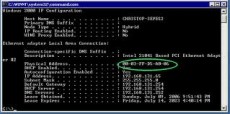 If you need to find the MAC address of your PC, then you can do this by following these steps:
- open the Command Prompt (Start, Run and type cmd, click OK)
- in the cmd window, type ipconfig /all
- this will display the detailed configuration of your network adapters
- If you only have an ethernet adapter, look for the first Physical Address entry. It will have 6 pairs of hexadecimal digits (letter/number combinations), separeted by hyphens (-) or colons (:)
- If you use a wireless connection, make sure you read the MAC address of the wireless adapter. If you are not sure where to look, read the description field above the Physical Address entry. It should include the name of the adapter
MAC addresses (also known as hardware or physical addresses) are unique identifiers of network adapters and network interface cards (NICs) and they are assigned by the manufacturer.

