By admin on Aug 3, 2009 | In Internet | No Comments »
 Are you thinking of starting a new blog, or you just created one? Then you will probably need photos to go with your articles. Finding the right image is not easy, and finding one that is free and not subject to copyright is even harder.
I tried to find as many Web sites that offer free images as possible and post them here. Even if you know where to get pictures for your blog, you may want to check out some alternatives.
I usually visit freeimages.com to download pictures for my blog. Most of the images are free, and some must be purchased. For example, photos that include real life people must be paid for. They have lots of high quality images that go with almost any topic – almost 400,000 photos in total. They are easy to search and you can preview thumbnails before you decide whether to download the full-size picture.
Another service that offers free images is Kave Wall. The photos are divided into categories and again, you can preview thumbnails, which makes it easy to find the image you like quickly. You are free to use the photos for Web sites and for commercial products as long as you “attribute the work in the manner specified by the author or licensor”.
Read the rest »
By admin on Jul 31, 2009 | In Hardware, Laptops | No Comments »
 Laptop buying guide, part 3: Final things to consider (see also part 1 and part 2).
Operating System: Windows Vista is loved by many, but hated by even more people. I think it has been a failure and I believe that many Vista users can’t wait to switch to the new Windows 7 system, which is coming out later this year. I suggest that you wait for the release of Windows 7 as it will be much better than Vista. I still use Windows XP and I’ll do so at least until Vista is replaced by Windows 7. It may be 7-8 years old but it’s stable and it doesn’t use as many resources as Vista; in other words, it doesn’t demand the latest hardware and excessive amounts of RAM.
Finally, the old PC or Mac question. I left it deliberatly until the end, as I don’t have much experience with Macs and I wouldn’t be able to review Apple parts and features. However, I want to list a few points to consider:
-
If you are looking for a more affordable laptop, then you should buy a laptop with a Windows system.
-
If you can afford both, then you should review pros and cons of both PC and Mac. For example:
-
Macs are great for photo and video editing, movie and music making, they have some beautiful new designs and are quite light. Also, they are more secure on the Internet as most viruses are made for Windows systems. On the other hand, if you’re not familiar with the Macs, you may not like them as some features are completely different from PCs – but you can get used to them. In addition, warranty and support service for Macs is costly and harder to obtain and the repairs are very expensive.
-
Windows is better for gaming performance, general affordability and software compatibility (not all applications can run on Mac’s operating system).
Read the rest »
By admin on Jul 29, 2009 | In Hardware, Laptops | 2 Comments
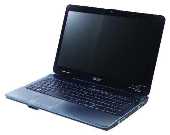 Here is the part 2 of my laptop buying guide. Part 1 was all about the processor and this part is about the RAM, hard drive, display and built in adapters.
RAM: If your laptop runs Windows Vista, then you’ll need at least 2GB of memory (the more the better) – preferably DDR2, PC6400 (800Mhz) or faster (1333Mhz). If you are happy to keep working with Windows XP, then you can get away with 1GB. How much RAM your laptop will need also depends on what you’ll be using it for. For example, if you want to do video editing, programming, 3d design, rendering or gaming, I suggest 4GB of RAM.
Hard drive: This is fairly simple: the higher the capacity, the better. I suggest at least 500GB. Netbooks include a new generation, solid state drives, which don’t include any moving parts. This makes them safer against damage (if you drop it accidentally), however they have a smaller capacity.
Video: If you’ll use your laptop mainly for typing and Internet surfing, then an integrated Intel graphic card (256MB or 512MB) should be just fine. If you want something better, so your videos and movies look better and something that will handle a 3D game, then go with non-Intel integrated graphics. For gamers and HD movie enthusiasts who need high performance, choose a high end ATI Mobility Radeon or Nvidia chipset with at least 1GB of Video RAM.
Read the rest »
By admin on Jul 27, 2009 | In Hardware, Laptops | 4 Comments
 So you want to buy a laptop but you’re not sure how to choose the right one?
There are many things to consider, for example the processor speed, the amount of RAM included, screen size, battery life and finally the price. Before you start shopping, you need to consider why you need the laptop and what tasks you want it to perform. This will affect your choices when selecting a brand, hardware and features. For example, a business man will need a different type of machine than a graphic designer or a gamer.
I hope this guide can help you make a decision. I’ll start with the processor.
When I did my first research a few years ago, I concluded that AMD machines are really good if you are into gaming, but you should go with Intel if you want a stable business machine. So AMD processors are good, but how many gamers use their laptops for gaming? I would say not many. Even if they can afford the best laptop money can buy, there is one thing that they don’t have: a big screen! Today, a 22” or 24″ LCD monitor is very affordable and gamers would go for a desktop PC anyway, as it’s easy to upgrade and you can choose which parts go in.
Read the rest »
By admin on Jul 24, 2009 | In Windows Vista | No Comments »
 In Windows Vista, Remote Desktop connection is disabled by default. To turn on Remote Desktop (in Business and Ultimate editions), please follow these steps:
- Right click on My Computer and choose Properties
- Click on the Remote Settings in the menu on the left side
- In the Remote tab, click the radio button that says: “Allow connections from computers running any version of Remote Desktop”, if you wish to connect from a machine running Windows XP/2000.
- If you wish to connect from a Vista machine on the same network, please select the bottom radio button.
- Click on Apply and OK
To enable Remote Desktop on Windows Vista Home Premium, please follow the instructions on this Web site.
To set up the connection so you can connect to your Windows Vista computer remotely, follow the instructions on the Techrepublic Web site. It is quite detailed and it includes screenshots.
